Connect OpenRouter
Create and fund an OpenRouter account, connect it to Takes, and set a spending limit.
OpenRouter holds the credits that pay for each model run. Set up and fund the right OpenRouter account first. Keep it signed in, then connect it from Takes.
You do not need to copy or paste an OpenRouter API key into Takes. The Connect OpenRouter button creates a separate authorization for Takes.
Create the OpenRouter account
Go to OpenRouter sign up. Continue with Google if that is the account you want to use, or choose another sign-in method. Keep that account signed in while you finish these steps.
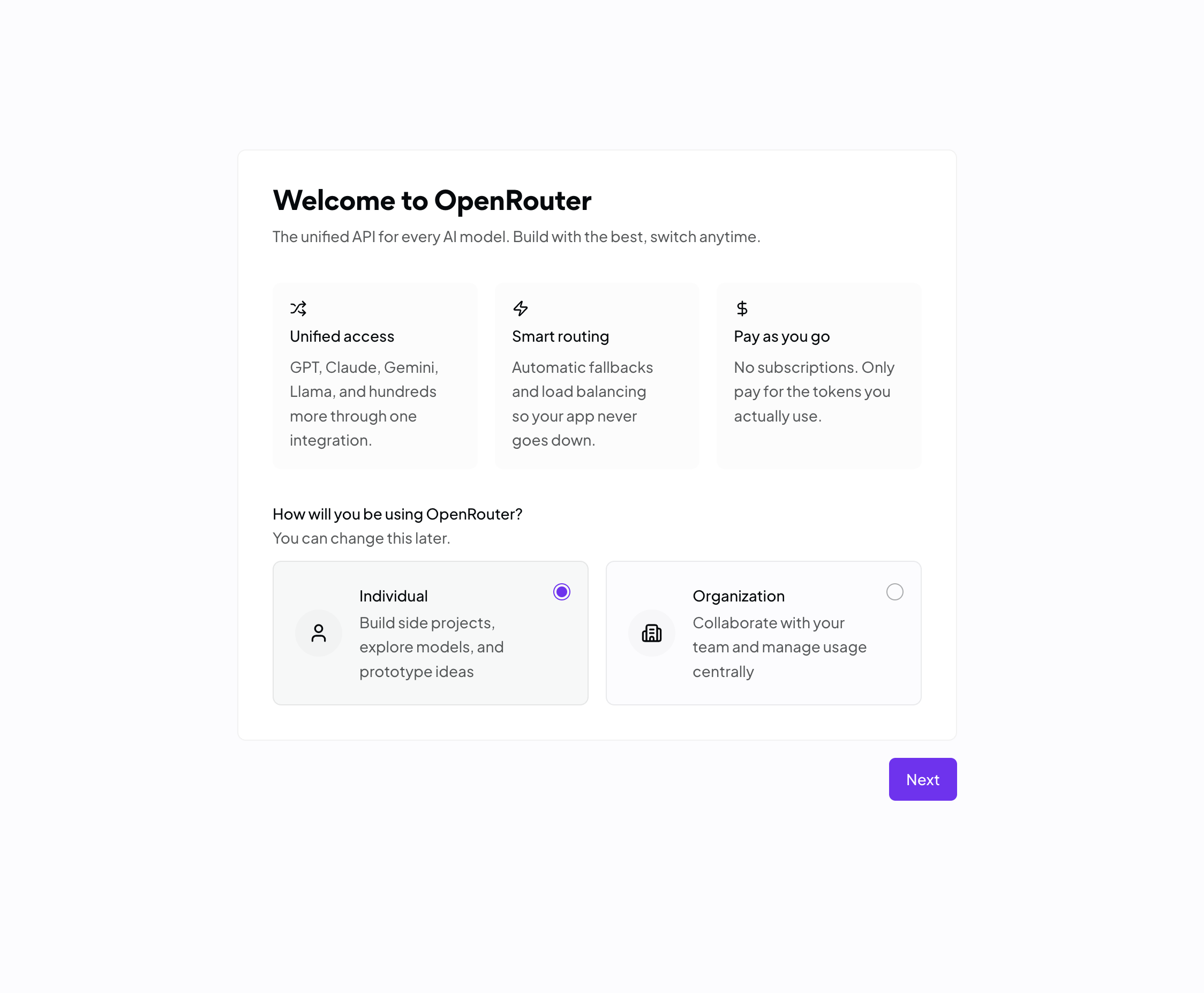
OpenRouter may show a welcome screen. For a personal account, select Individual, then select Next. Choose Organization only when a team workspace will hold the credits and pay for the runs.
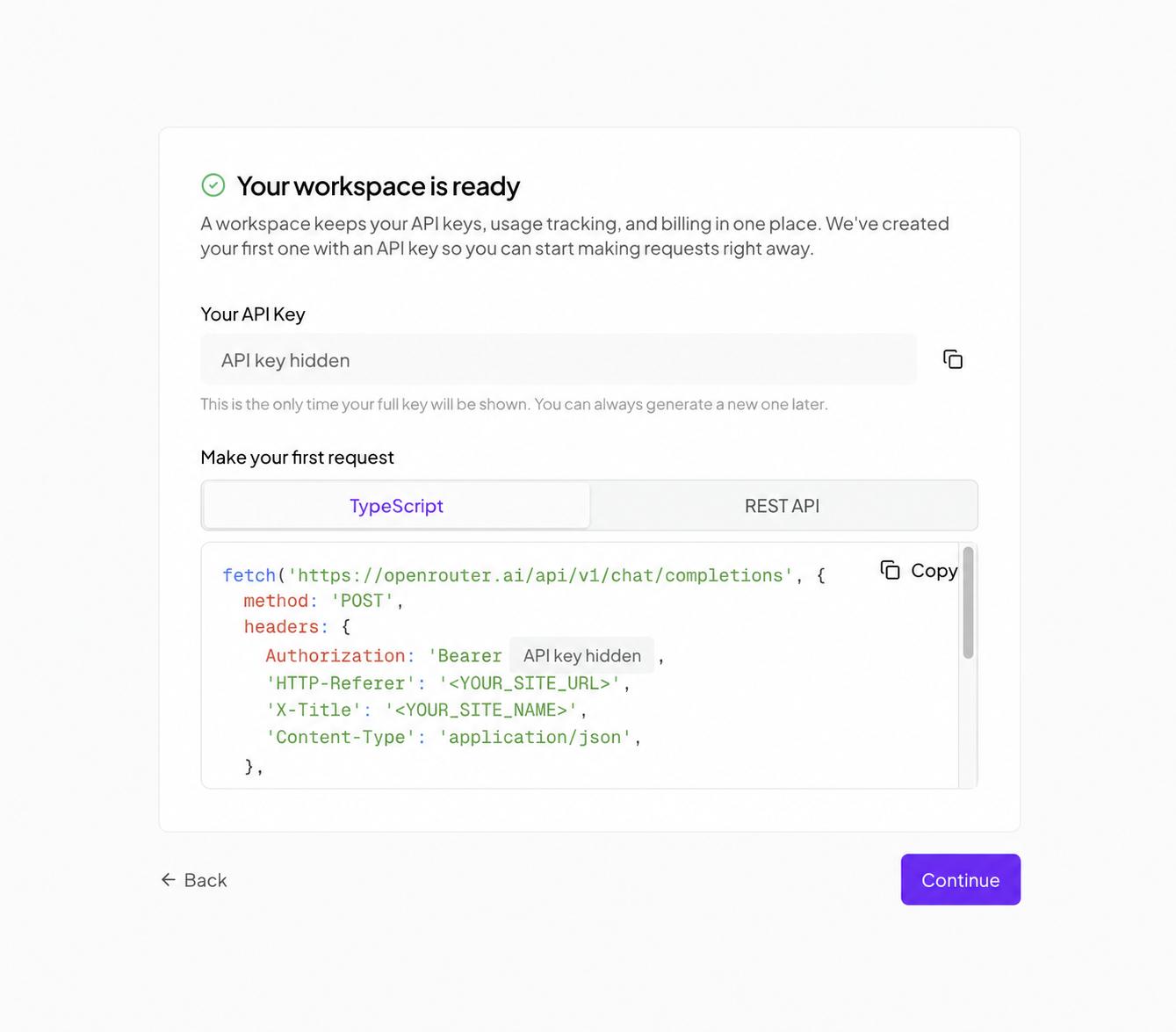
OpenRouter may then show a starter API key. Takes does not need this key. Do not copy it into Takes. Select Continue.
Add a payment method and credits
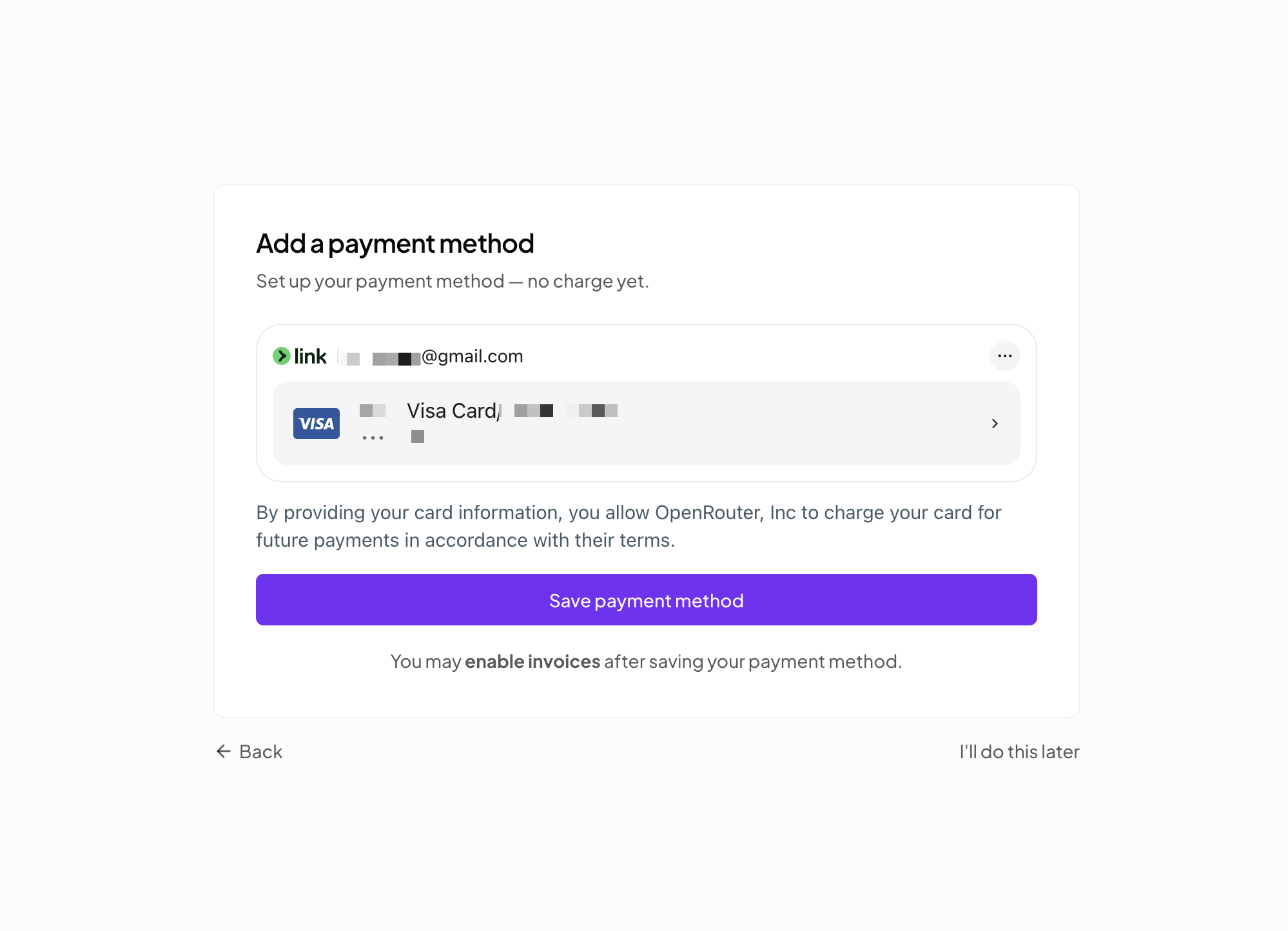
If OpenRouter asks for a payment method, add one and select Save payment method. Saving a payment method does not add credits by itself.
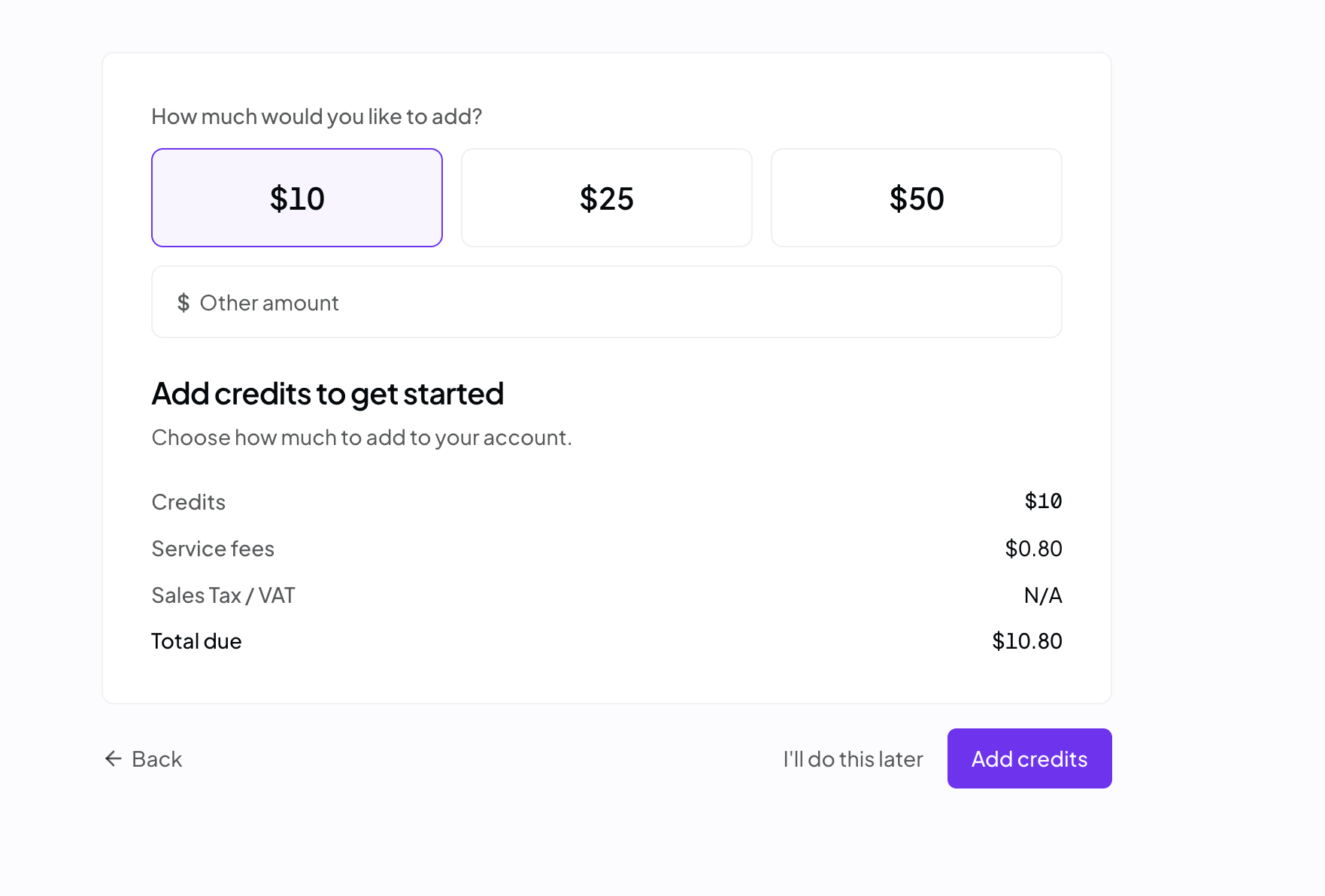
Choose an amount you are comfortable spending, then select Add credits. The $10 shown below is only an example. OpenRouter shows its purchase fee and the total before you confirm. You can add or check credits later from the OpenRouter credits page.
Connect OpenRouter from Takes
Return to your Takes canvas. If Takes shows the Connect OpenRouter dialog, select Connect OpenRouter.
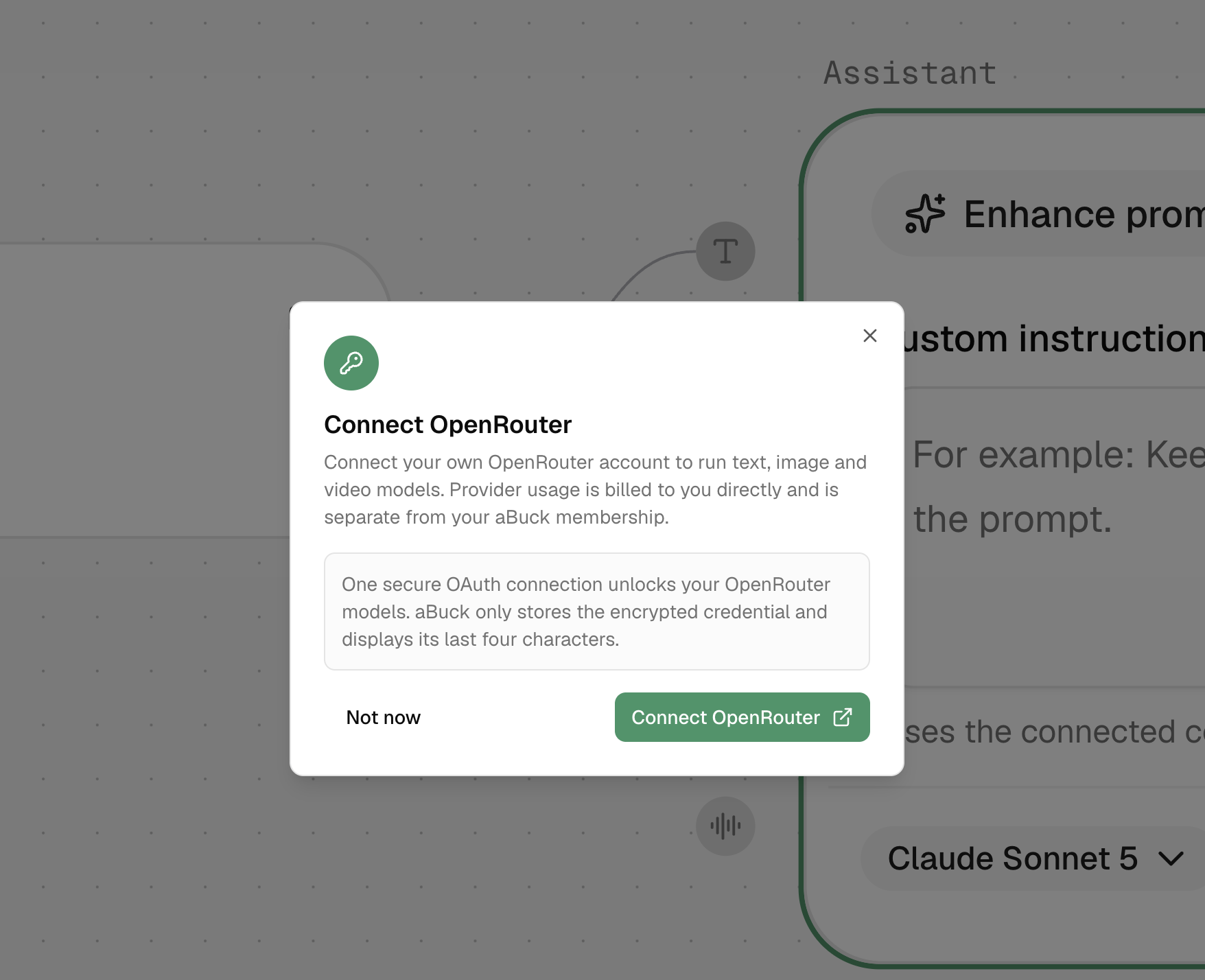
You can also start the same connection from Settings → API keys → Connect OpenRouter.
Set the authorization limit
OpenRouter opens an Authorization Request. Check that it returns to
https://abuck.app. Do not approve a request that returns anywhere else.
Select the personal account or workspace that holds your credits. The optional
Credit limit is the most the key created for Takes can spend. A simple
starting point is to match the credits you just added. If you added $10, enter
10. This limit does not add credits to your account.
Leave Reset limit every as N/A and Expiration as No expiration unless you want a recurring budget or an expiry date. Then select Authorize. If the button is disabled, wait for OpenRouter to finish loading your workspaces.
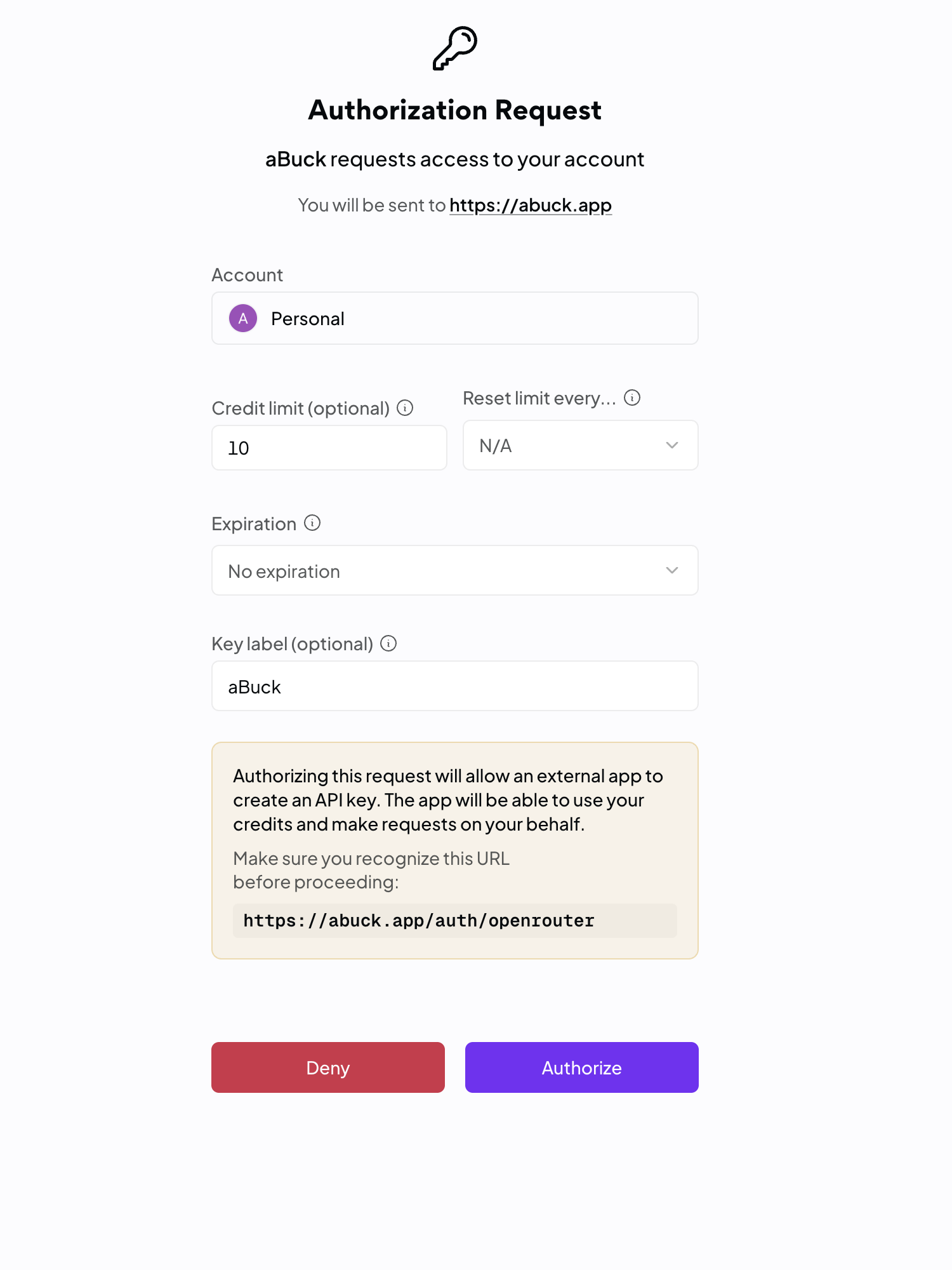
OpenRouter sends you back to the canvas after approval. Takes stores the credential encrypted and shows only its last four characters. You can now select a model and press Play on a generator.
If the connection does not finish
- If OpenRouter sends you to sign in, sign in to the funded account and start Connect OpenRouter again.
- If a run says that you have insufficient credits, add credits on OpenRouter. A run needs both available account credits and room under the authorization limit.
- If OpenRouter rejects or expires the authorization, return to Takes and start a new connection. Authorization codes work once.
- If you see a field asking you to paste an OpenRouter key, make sure you are using the OpenRouter card. Only the optional Replicate connection uses a pasted key.